On the survey page you edit a template picked from the list, or start building your own survey from scratch.
Pay attention to the white bar at the top as well. In it you will find, from the left, the template change with the background and font colours, the survey preview, printing the survey, information about the survey manager, and also a link to the help center.
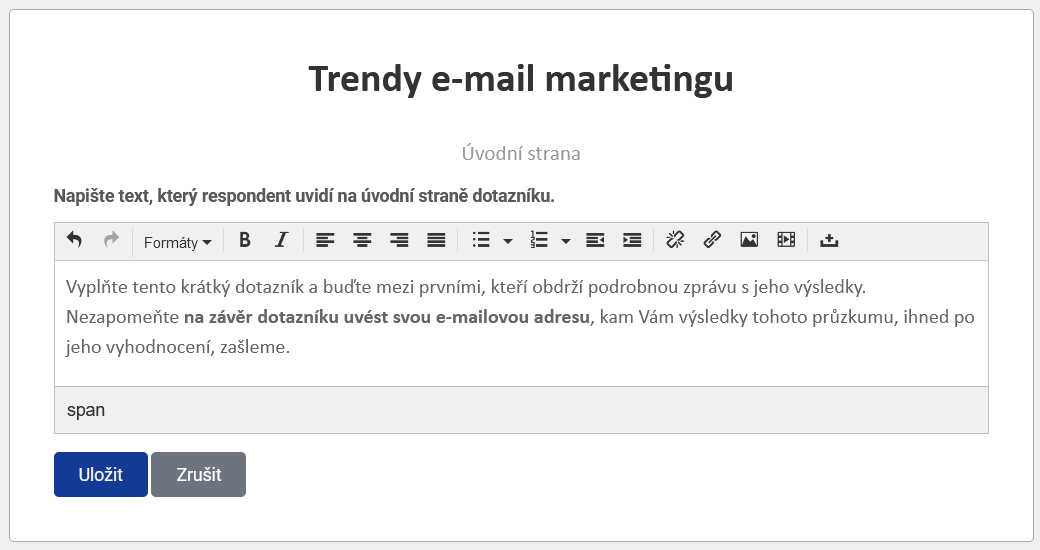
Intro page
The name of the survey was copied from the name on the settings page. You can change it by clicking into the field.
Clicking the edit button opens the space for the text that the respondent sees on the intro page of the survey.
Survey
You start building your survey by clicking the "Add new question" button.
In the table you choose the type of question you want to create from the drop-down menu.
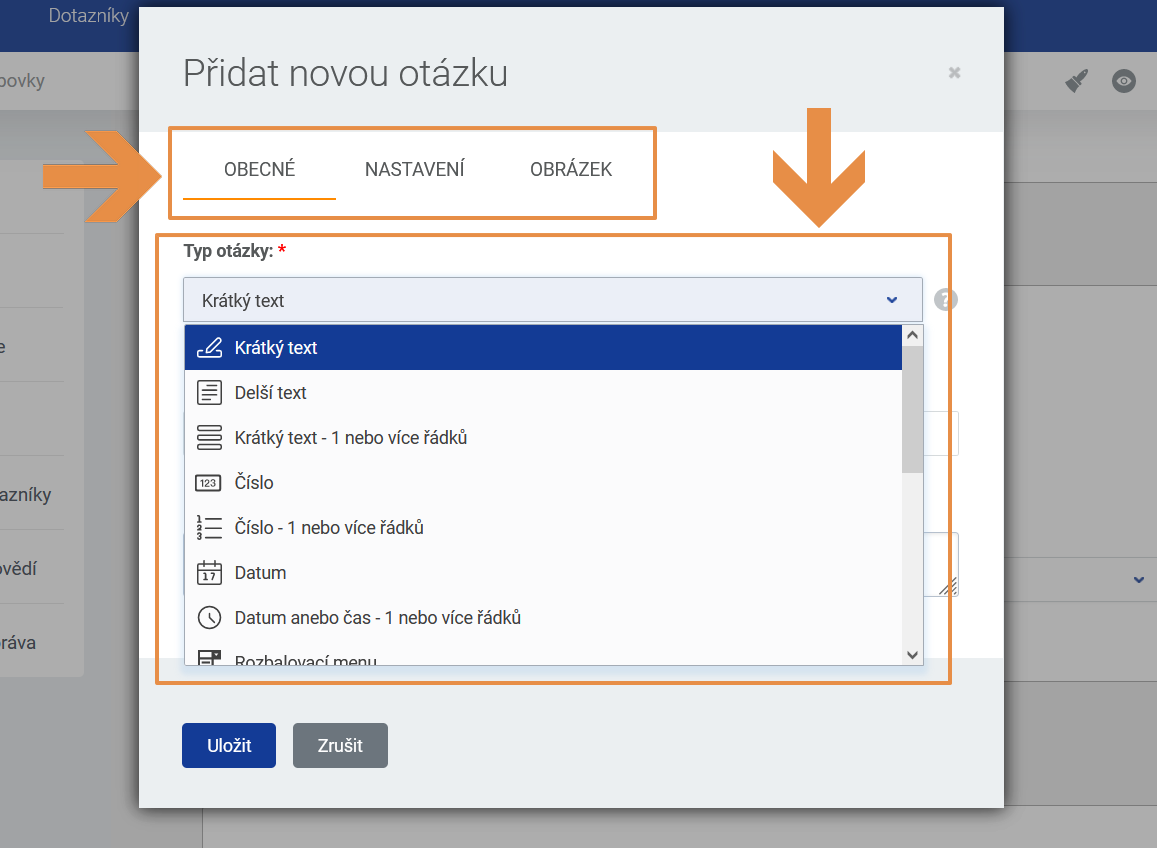
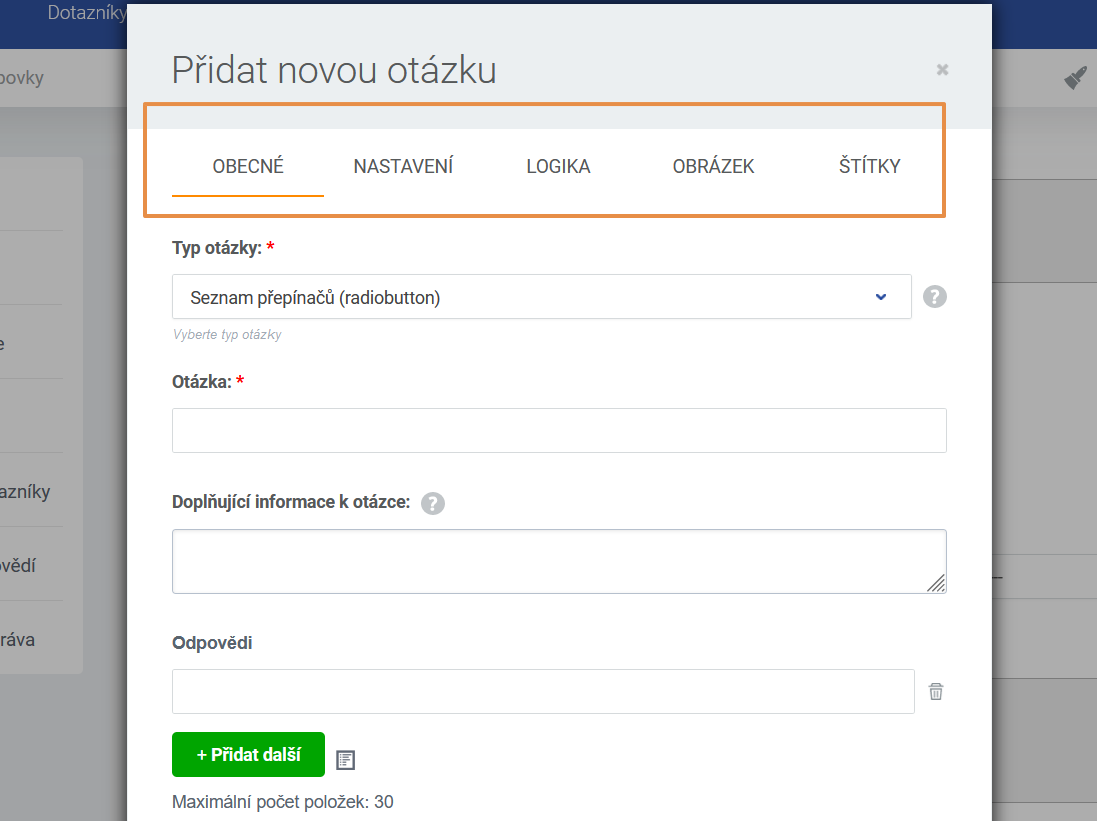
The tabs at the top, which you can switch between, may differ depending on the question type.
If you have more questions, we recommend splitting them across several pages using the Insert new page button.
Question types:
-
Short text

-
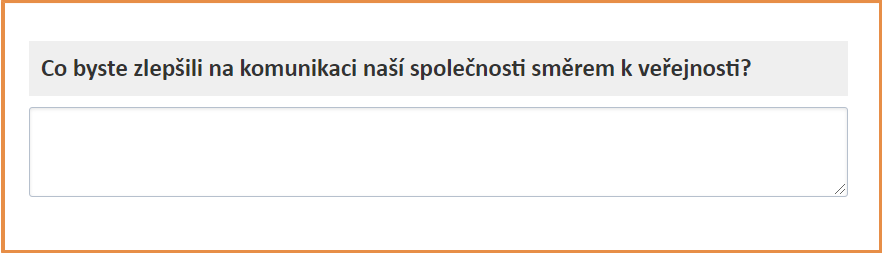
Longer text
-
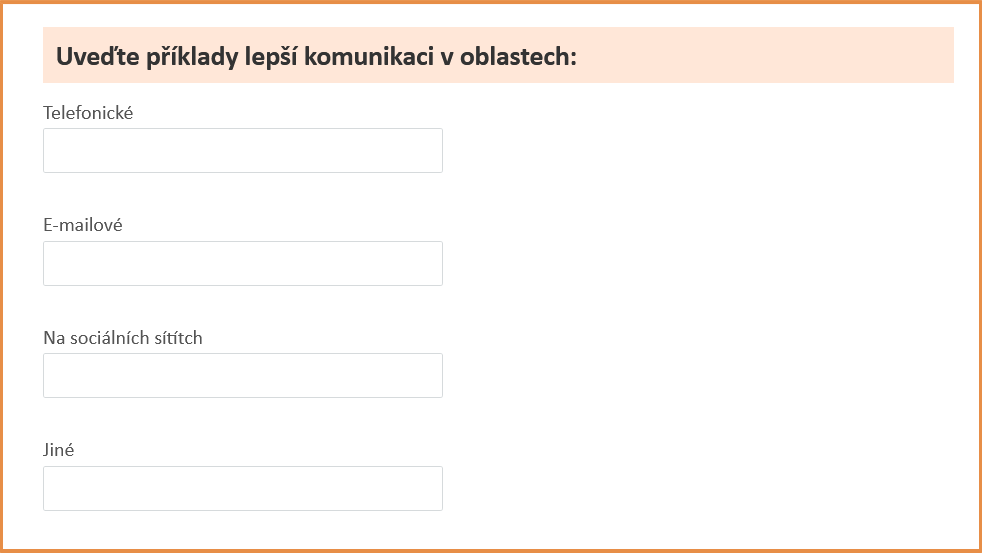
Short text - 1 or more lines
-
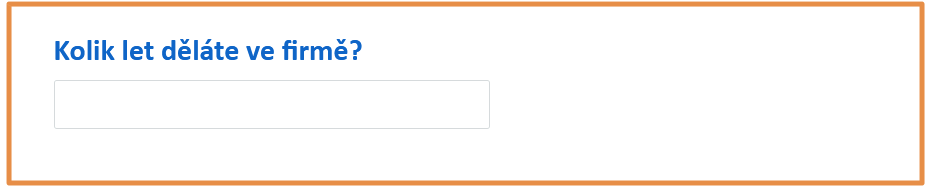
Number
-
Number - 1 or more lines
-
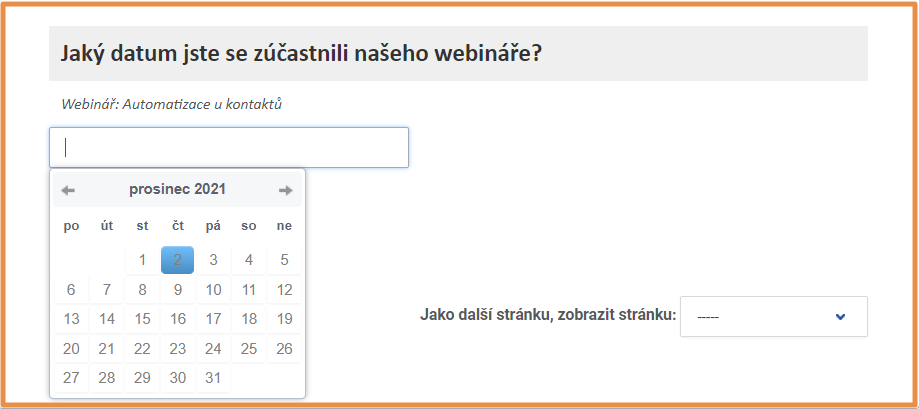
Date
Additional information about a question is shown in italics below the question.
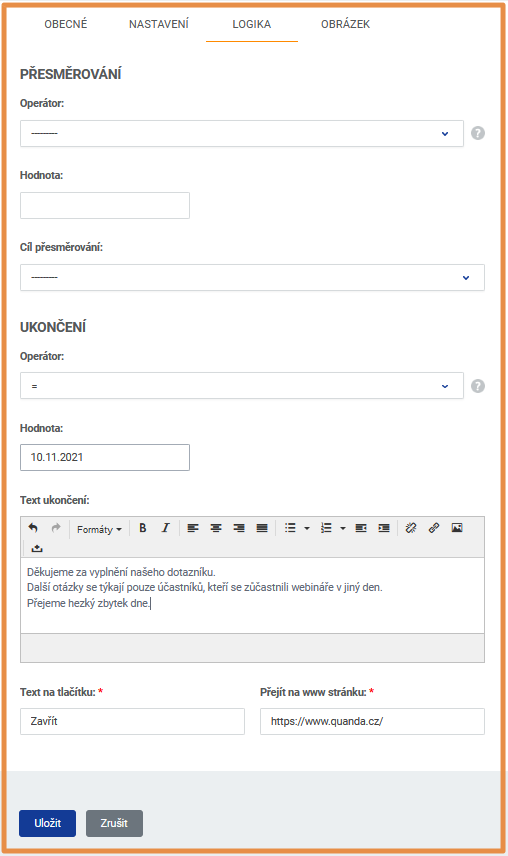
In the Logic tab of a question you can set a redirect or the end of the survey based on the answer.
-
Date or time - 1 or more lines
-
Drop-down menu
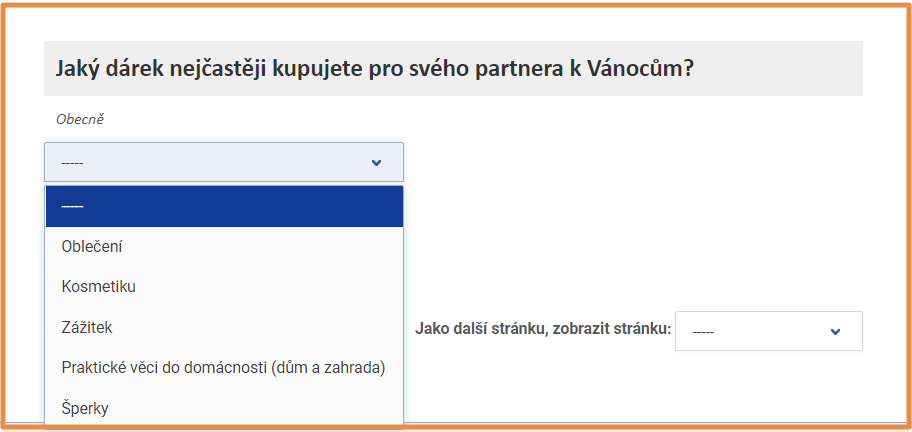
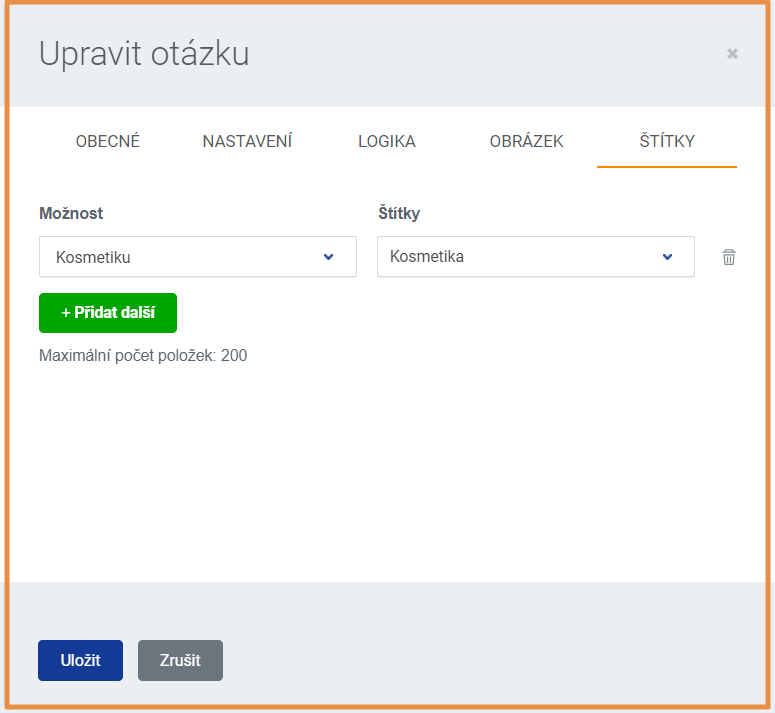
In the Tags tab of a question you can assign a tag to the contact based on the answer. This is possible if the survey is sent as an invitation from Quanda, that is if the contact is recorded in Quanda and the respondent can therefore be recognised.
-
List of radio buttons
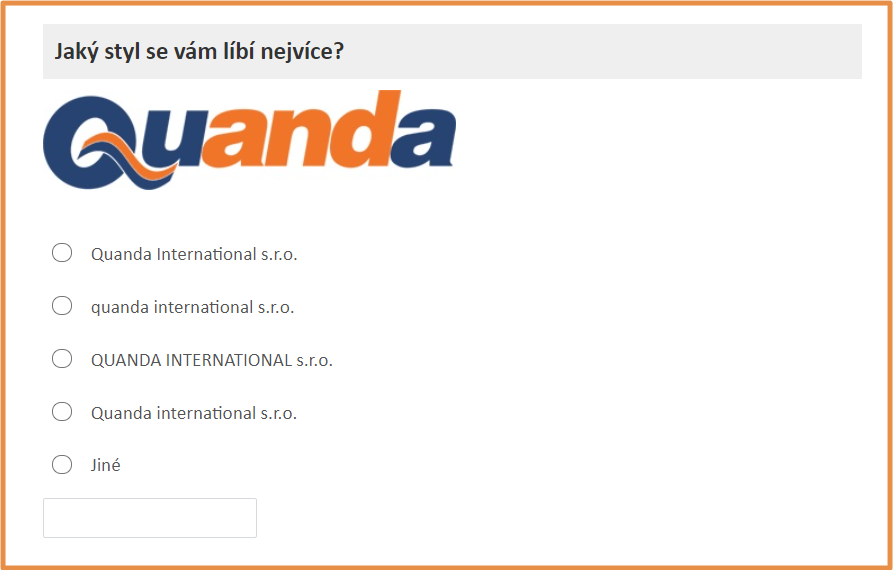
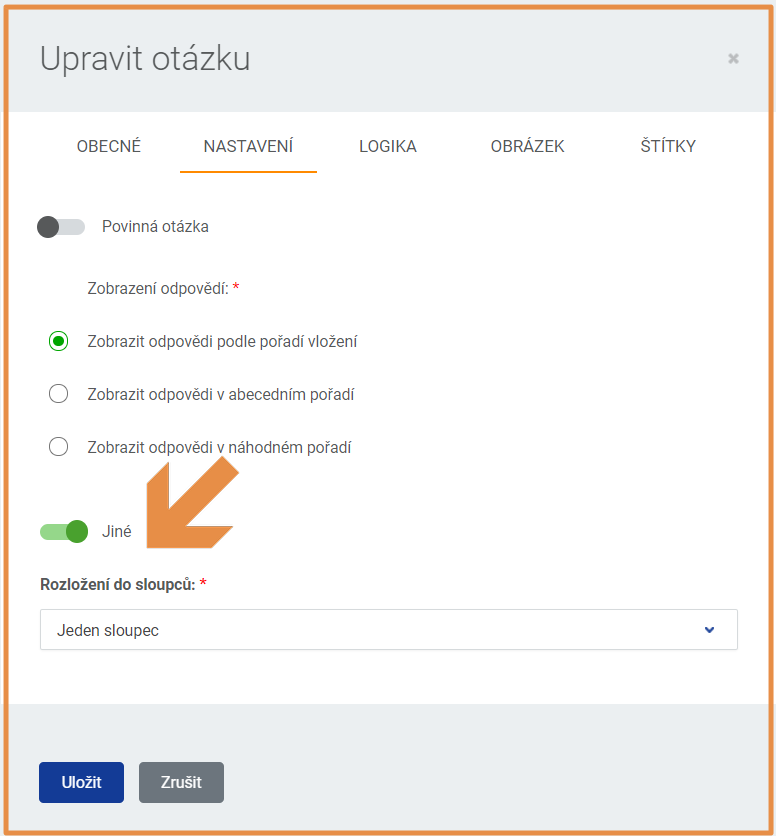
In the Settings tab of a question you can add an "Other" field where the respondent can write an answer if they do not pick one from the list.
The column layout determines how many columns the answer options are arranged into.
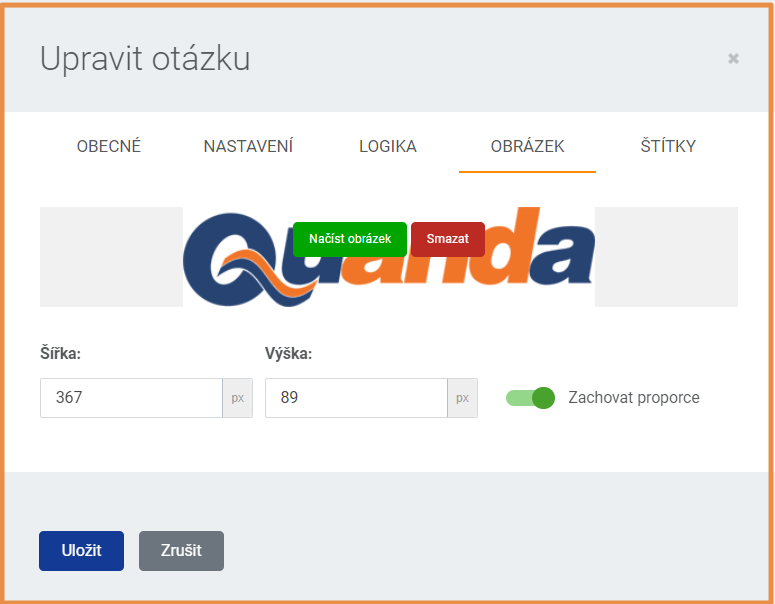
In the Image tab of a question you can insert a jpg or png file.
-
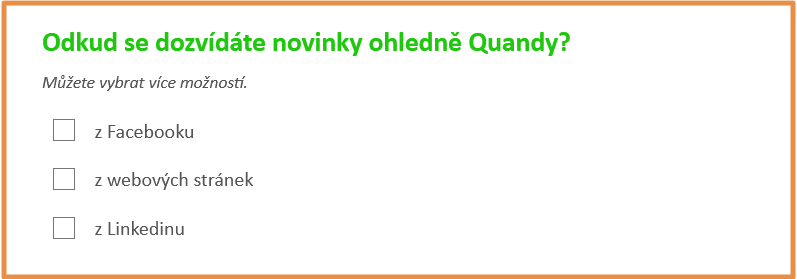
List of checkboxes
-
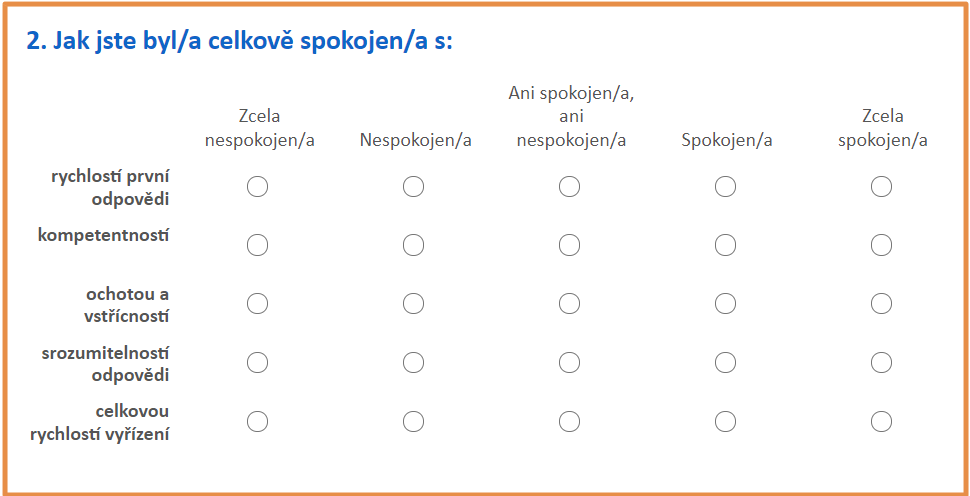
Rating scale
-
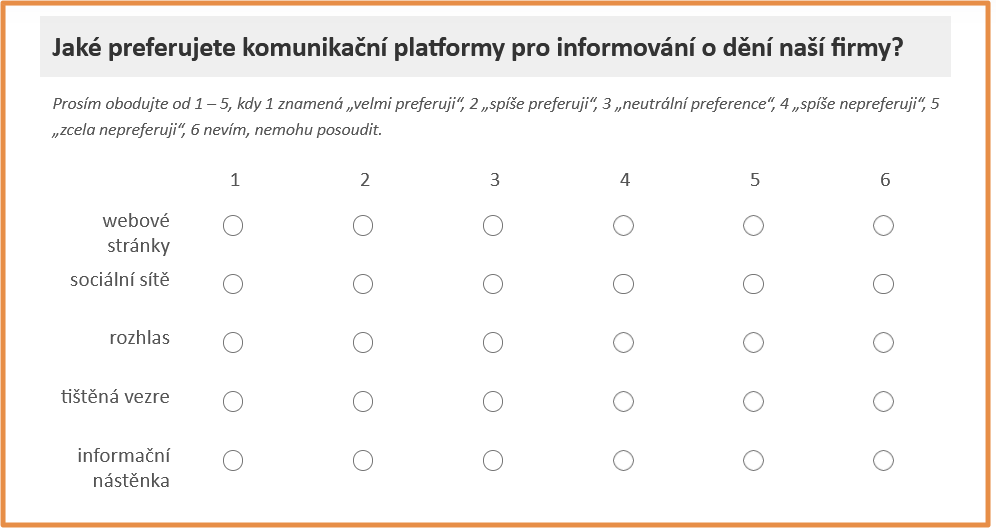
Table of radio buttons
-
Table of checkboxes
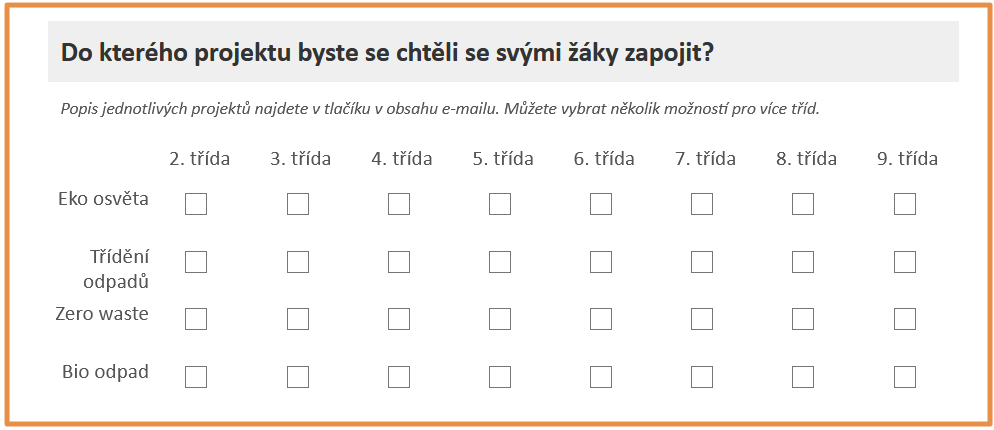
-
E-mail
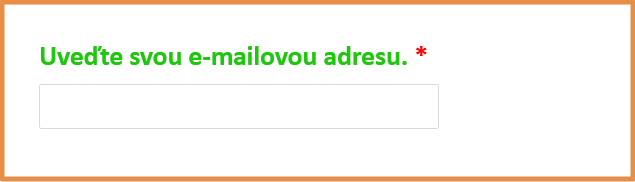
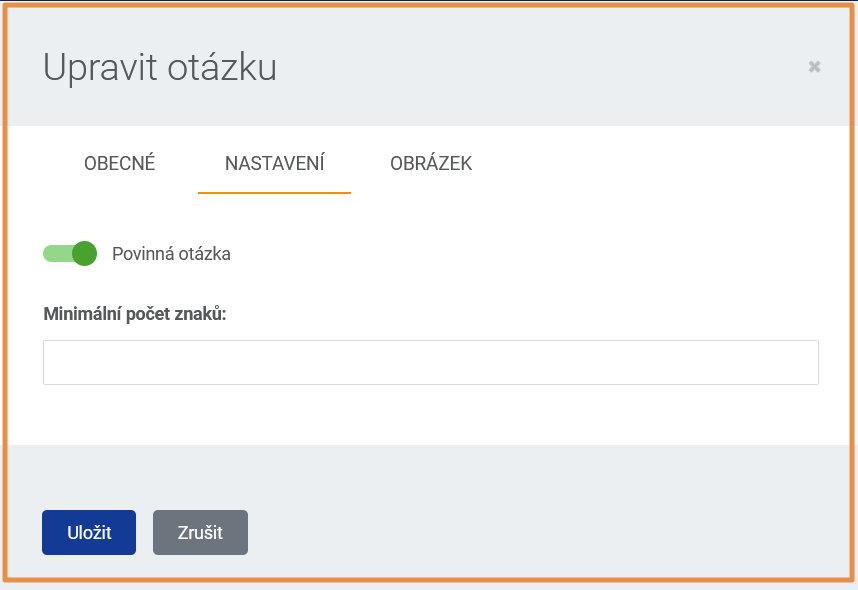
In the Settings tab of a question you can pick the Mandatory question option. A red cross appears next to it and the survey cannot be submitted without it being filled in.
- Upload a file
The maximum file size is 5 MB.

-
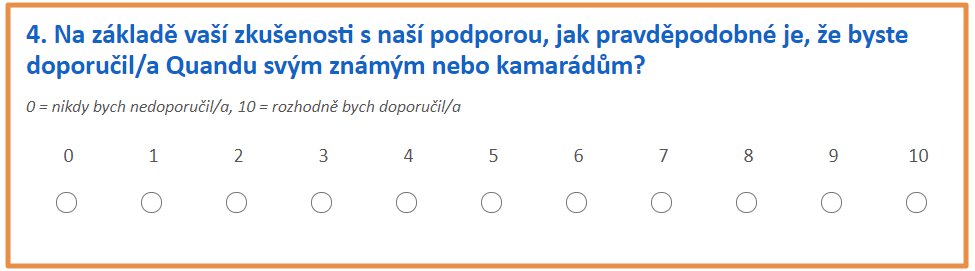
NPS (net promoter score)
The resulting NET PROMOTER SCORE value equals PROMOTERS (9 and 10) minus DETRACTORS (0 to 6). PASSIVE (7 and 8) respondents are left out. The resulting value in % then reflects the willingness of respondents to recommend, not recommend or on the contrary criticise the product, service or company the question was about.
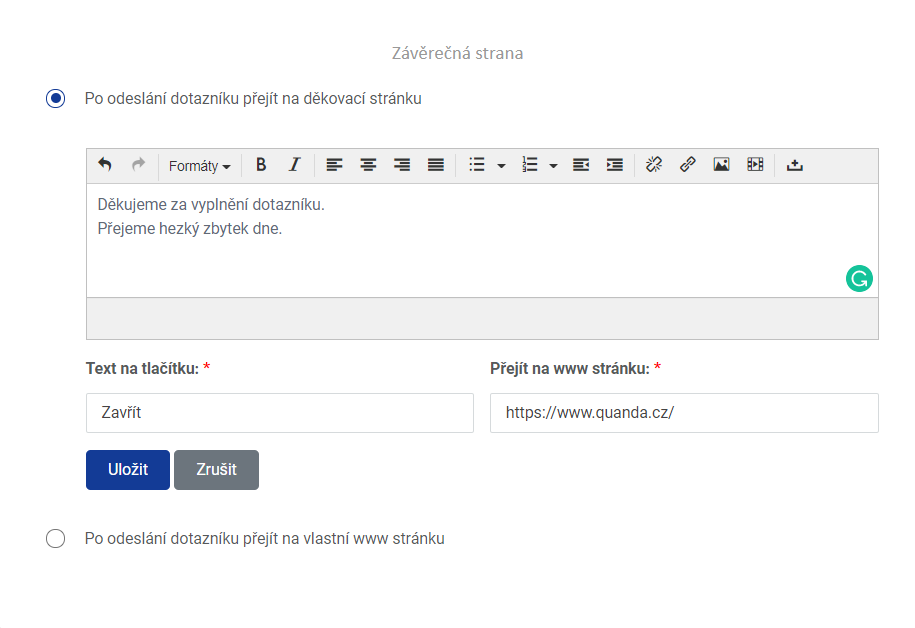
Closing page
Do you have questions? We will be happy to answer them. Just contact our customer support at +420 605 163 892, e-mail: support@onquanda.com.
You can also split your questions across several pages.
Updated leden 3, 2022