Double opt-in is the verification of the subscriber's e-mail address.
Would you like to know more about the double opt-in option in forms? Read our article: Double opt-in. What is it and how does it work?
Once this feature is on, a verification e-mail is first sent to the address given in the form after it is submitted. This verification e-mail contains a request to verify the e-mail using a specific link that the subscriber has to click for the verification to succeed. You can create the content of this verification e-mail further down this page.
It mainly serves to protect the correctness of the e-mail address. It prevents typos, a person can realise it afterwards when they notice that no verification e-mail arrived. It also keeps deliberately wrong e-mail addresses, which may not even exist, from piling up in your contact list.
How to do it:
In the first part you turn the verification on with the slider.
Then you only fill in the details for the verification e-mail: the subject and the text. The text field has basic formatting settings.
You adapt the e-mail verifying the e-mail address to your own needs. We recommend keeping the content as simple as possible though, a text that is clear, brief, to the point and without images, for two reasons. So that the percentage of delivery into the main inbox folder is as high as possible, and so that recipients do not have to read long texts and can confirm the e-mail in a few seconds and get onto the contact list in Quanda.
The verification link is generated automatically when you switch to the Double opt-in tab.
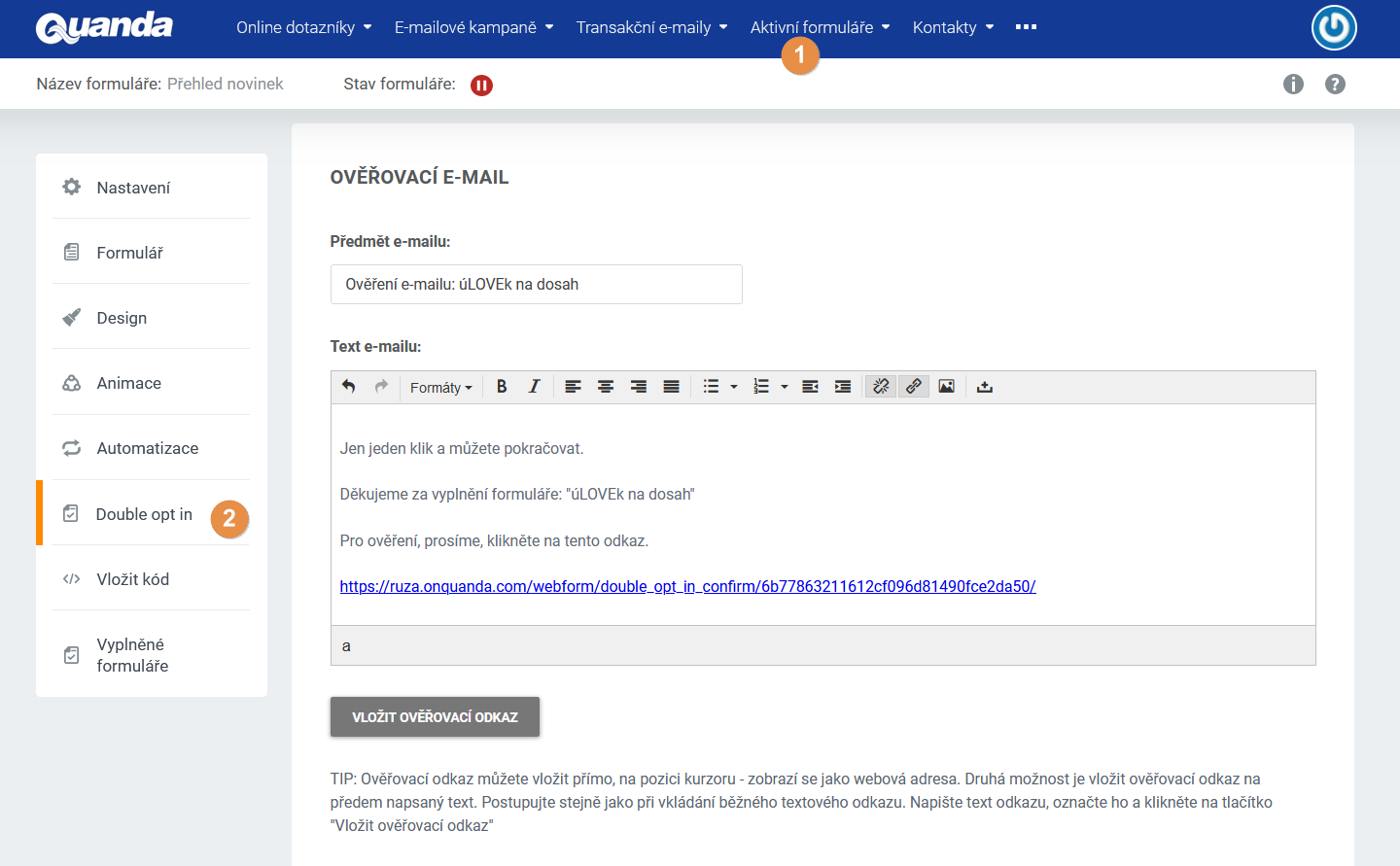
You can insert the link into the text. Delete the original link, select the text the verification will happen from and click the INSERT VERIFICATION LINK button.
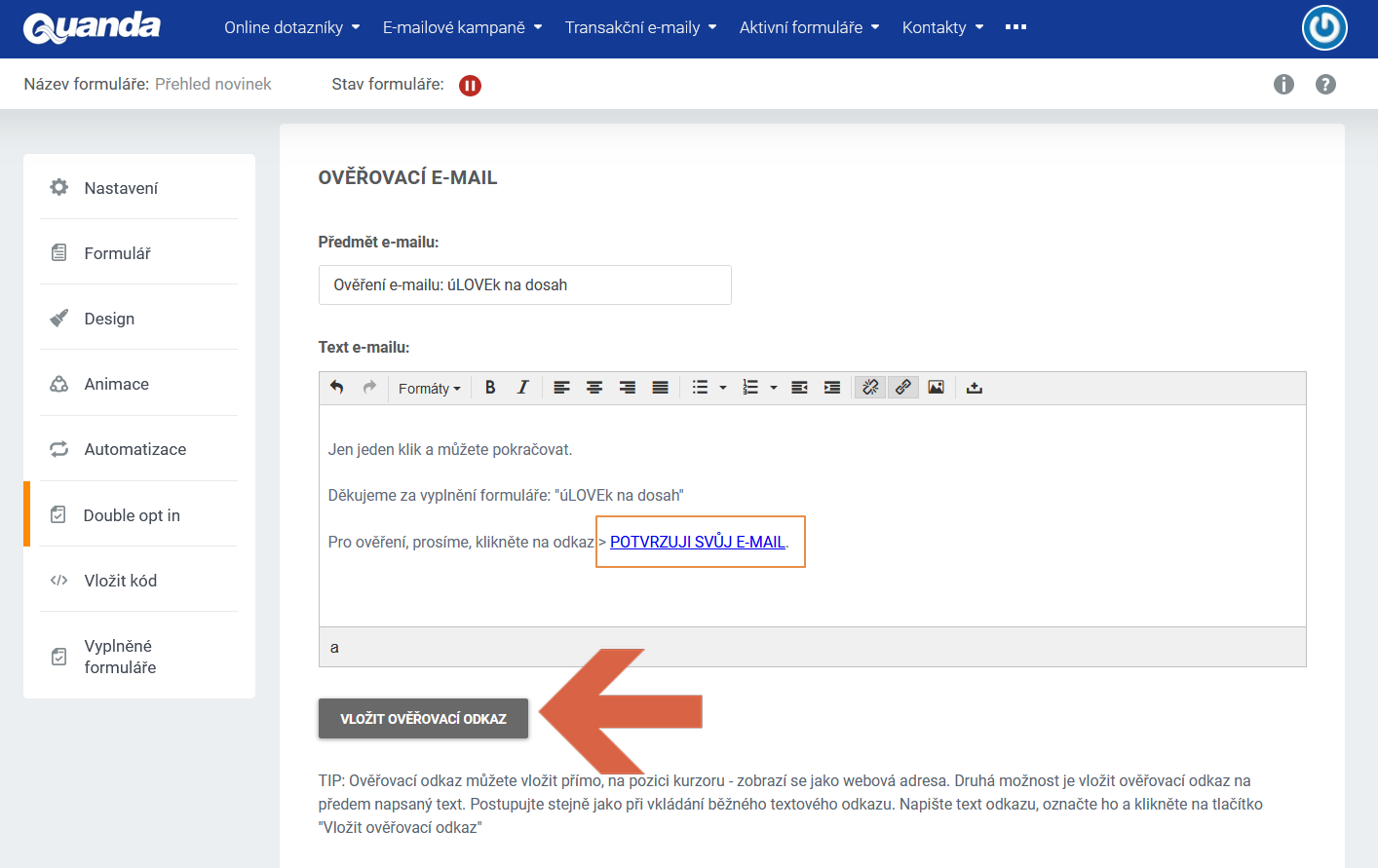
There can only be one link in the e-mail for the verification to go through correctly.
You can insert the verification link directly at the cursor position, where it appears as a web address. The second option is to attach the verification link to text written in advance. Proceed the same way as when inserting a normal text link. Write the link text, select it and click the "Insert verification link" button.
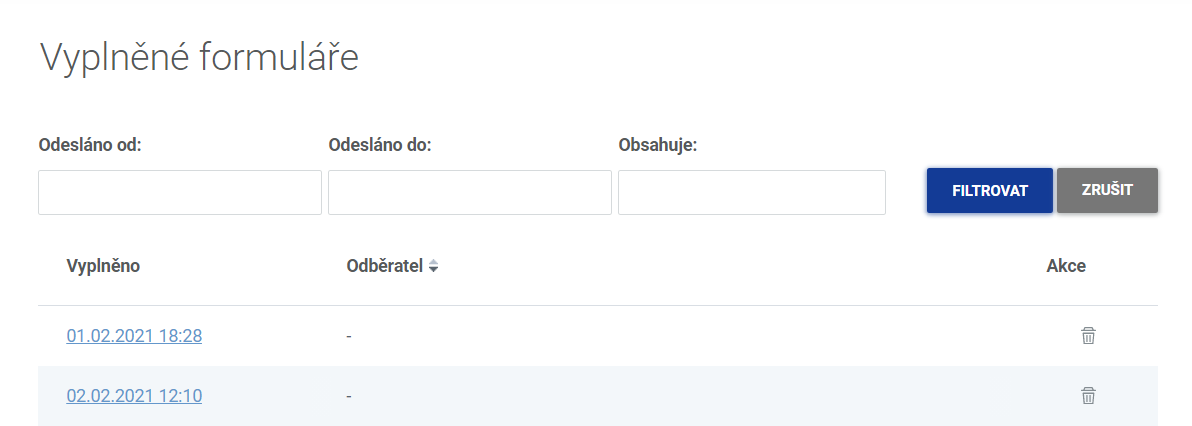
Tip: Under the form / Completed forms you can see how many people did not confirm the double opt-in and therefore did not make it into the contact database.
Once you sort the subscribers in descending order, only dashes appear at the top of the list, which means the double verification did not go through.
Do you have questions? We will be happy to answer them. Just contact our customer support at +420 605 163 892, e-mail: support@onquanda.com.
Updated leden 4, 2022