You solve adding an attachment in Quanda by simply uploading it to a shared space such as Dropbox, OneDrive, Google Drive or your website, and then inserting the link into a button in the e-mail editor in Quanda.
Let us show, for example, how to easily add an attachment to Google Drive.
Just sign in to your Google account > on the google.com home page, open the nine dots in the top right corner (Google apps) > Drive > + New on the left > create or upload a new file. You can also put it into a folder that only holds files for sharing.
Once we have the file ready > the share button in the top right corner (through the three dots for a PDF) > click change in the get link table > pick anyone with the link in the drop-down. You can also change their permission (viewer, commenter, editor).
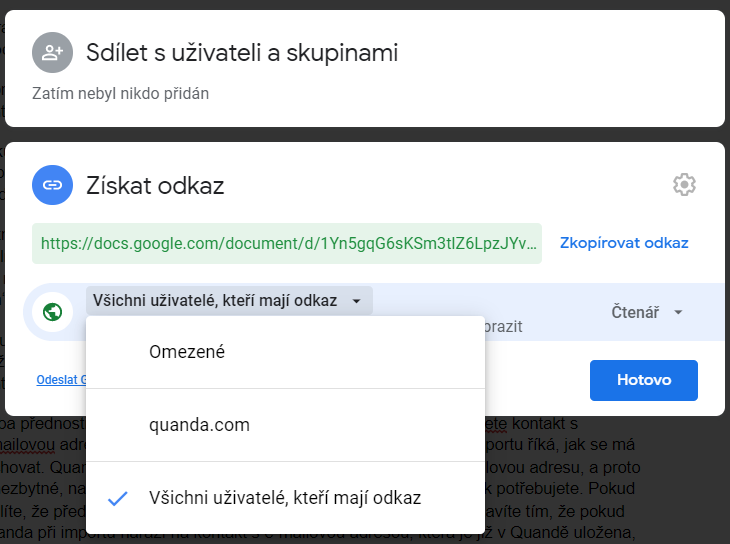
Copy the generated link and go to Quanda.
In the e-mail editor, build the content of the e-mail and insert the button field from the right-hand side. You can adjust the button visually as needed (colour, shape, size), rename it, and in the Link part choose > link type: link > link address: the link copied from Google Drive > title: that is what people see when they hover over the button (for example, click here to get the attachment).
Now all that is left is to finish the work in the editor, save and continue with the campaign.
Do you have questions? We will be happy to answer them. Just contact our customer support at +420 605 163 892, e-mail: support@onquanda.com.
Updated říjen 7, 2021