CSV files can be opened in MS Excel as well. Excel usually uses a semicolon (;) and not a comma (,) to separate columns, so you have to use the Excel wizard to open (import) a CSV file.
This guide can differ slightly between individual versions of Excel, but the principle and the steps stay the same.
- Open a blank sheet in Excel.
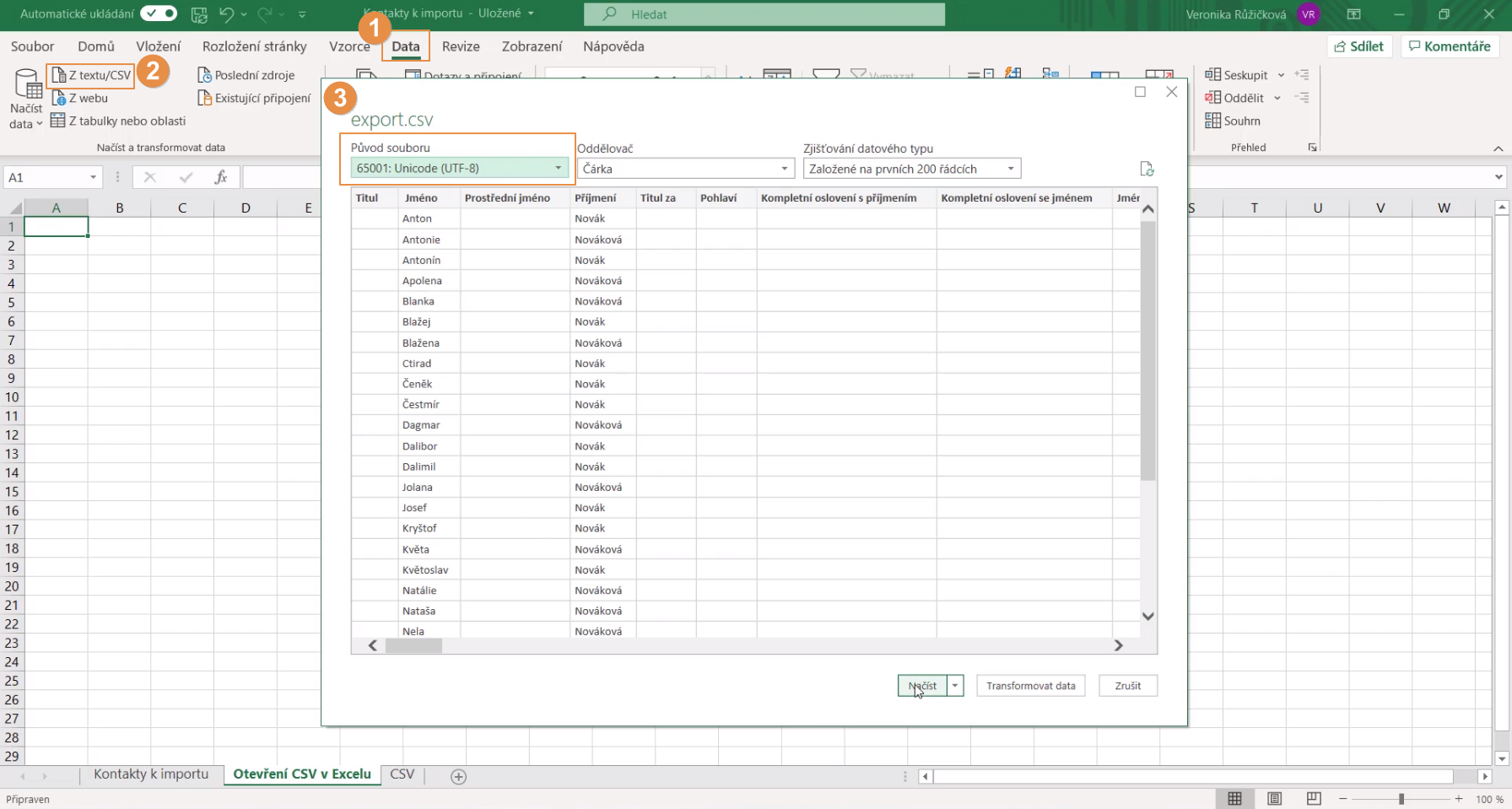
- Click "Data" in the upper menu.
- In the menu on the next line, usually on the far left, you will find the "Get and transform data" section and "From text/CSV" in it. Different versions of Excel have it slightly differently, but the names and places are very similar.
- Choose "From text/CSV" and find the downloaded file.
- Click the import button.
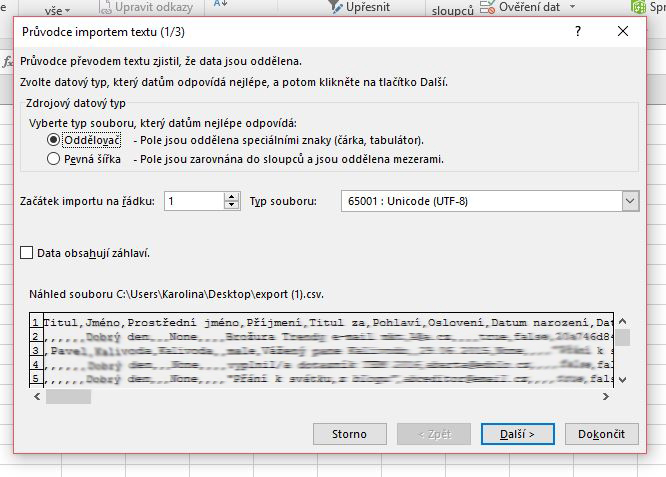
- Depending on the version of Excel you are using, the following steps may differ a bit. The principle is always the same though.
- Select that the file is delimited.
- If the diacritics do not display correctly, choose the "UTF 8" encoding.
- Choose a comma as the delimiter and finish the import.
Older versions of Excel:
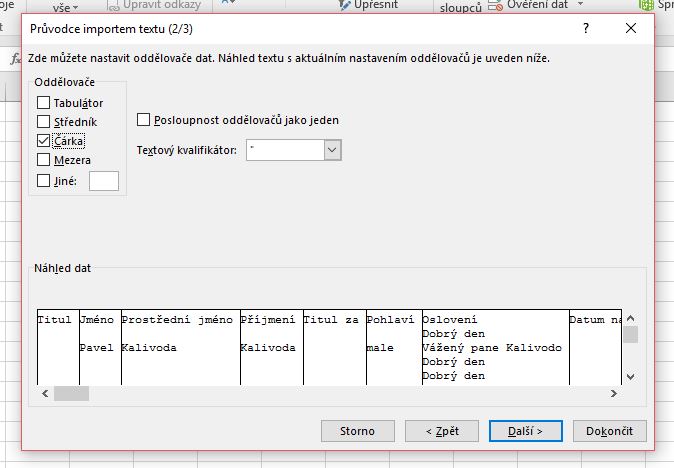
At this point you should see your data in Excel in the right shape and in columns. If you cannot get it to work, contact us on the support phone number or e-mail.
Do you have questions? We will be happy to answer them. Just contact our customer support at +420 605 163 892, e-mail: support@onquanda.com.
Updated duben 29, 2021