For the connection to be possible you need active accounts in both systems. You can try the connection out in the trial versions of both programs, which are free. So you need to activate an account or log in in Quanda and also in RAYNET.
You will find more information about the trial version in Quanda in the article > Starting a trial and what it offers, try Quanda free for 14 days.
The connection itself is then up and running in a few clicks, so let us get to it.
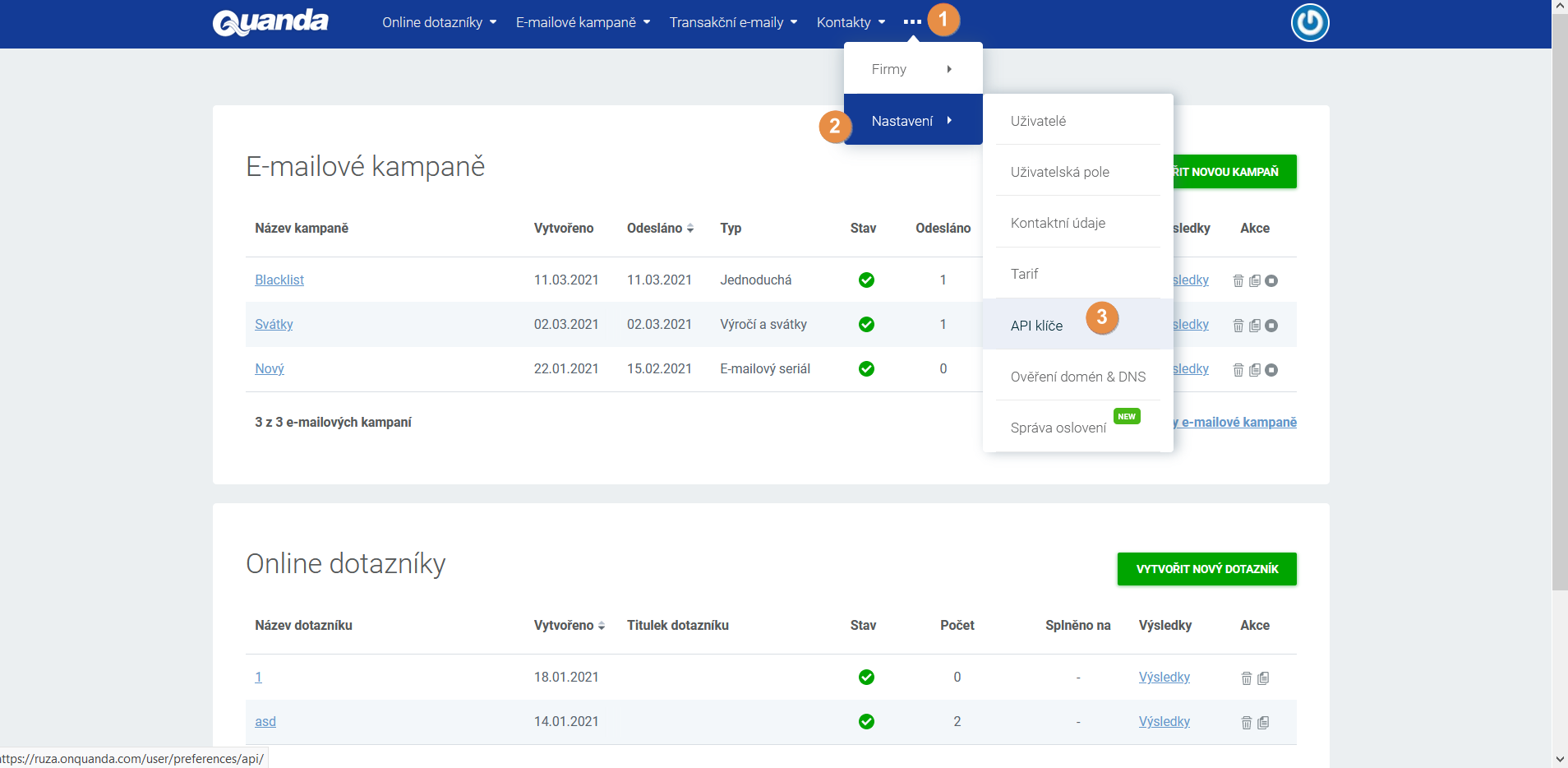
In Quanda, click the three dots / Settings / API keys.
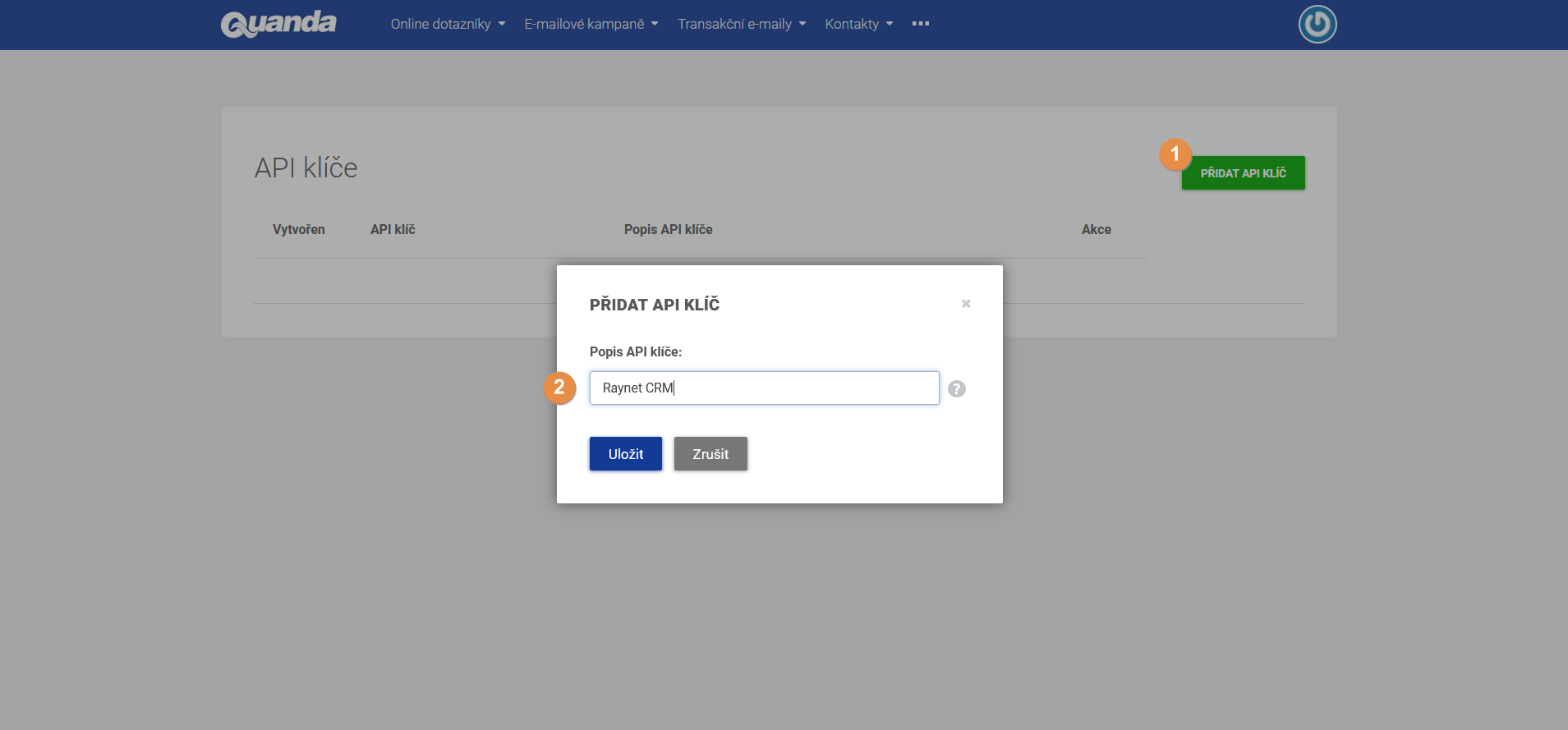
Click the ADD API KEY button and name it, for example Raynet CRM.
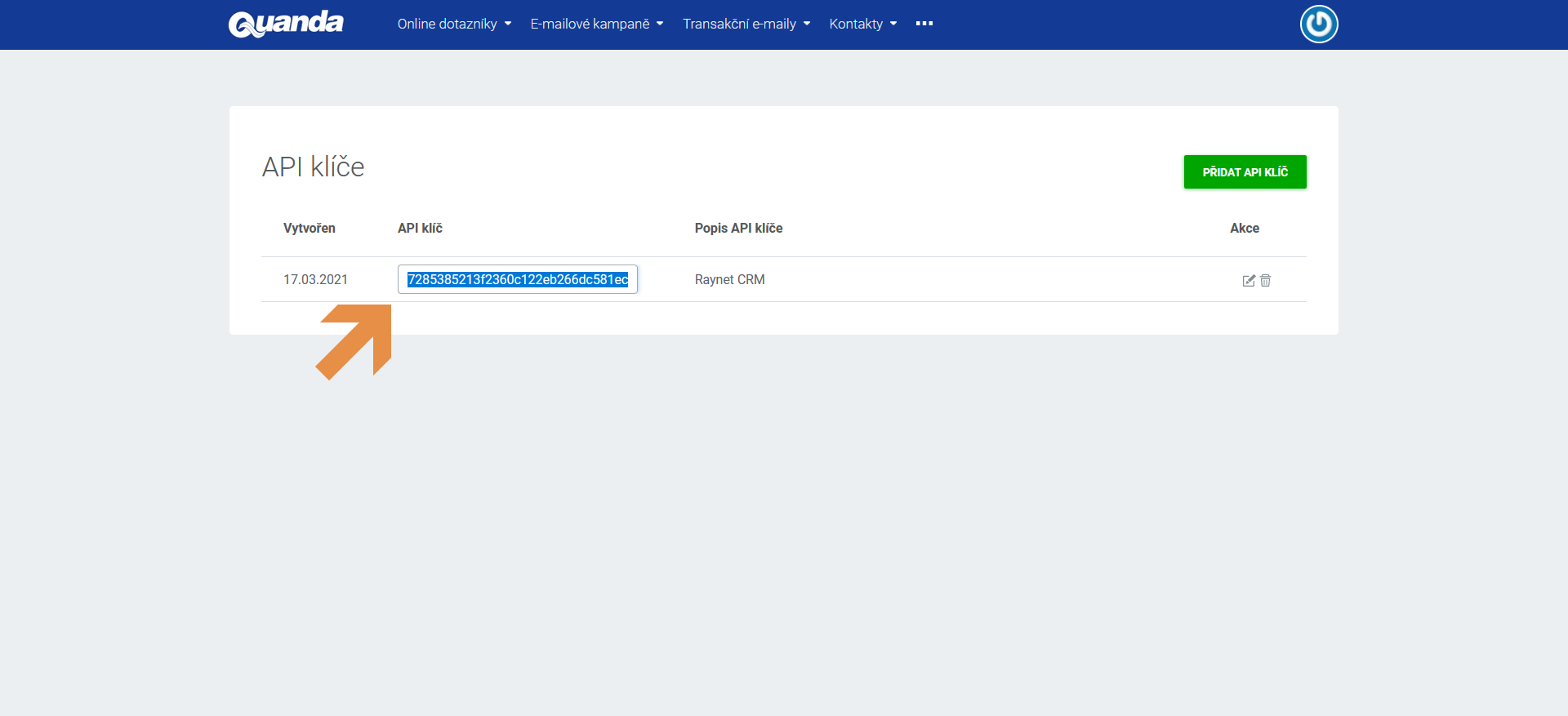
Copy the generated API key. Now we move to RAYNET and paste the key there.
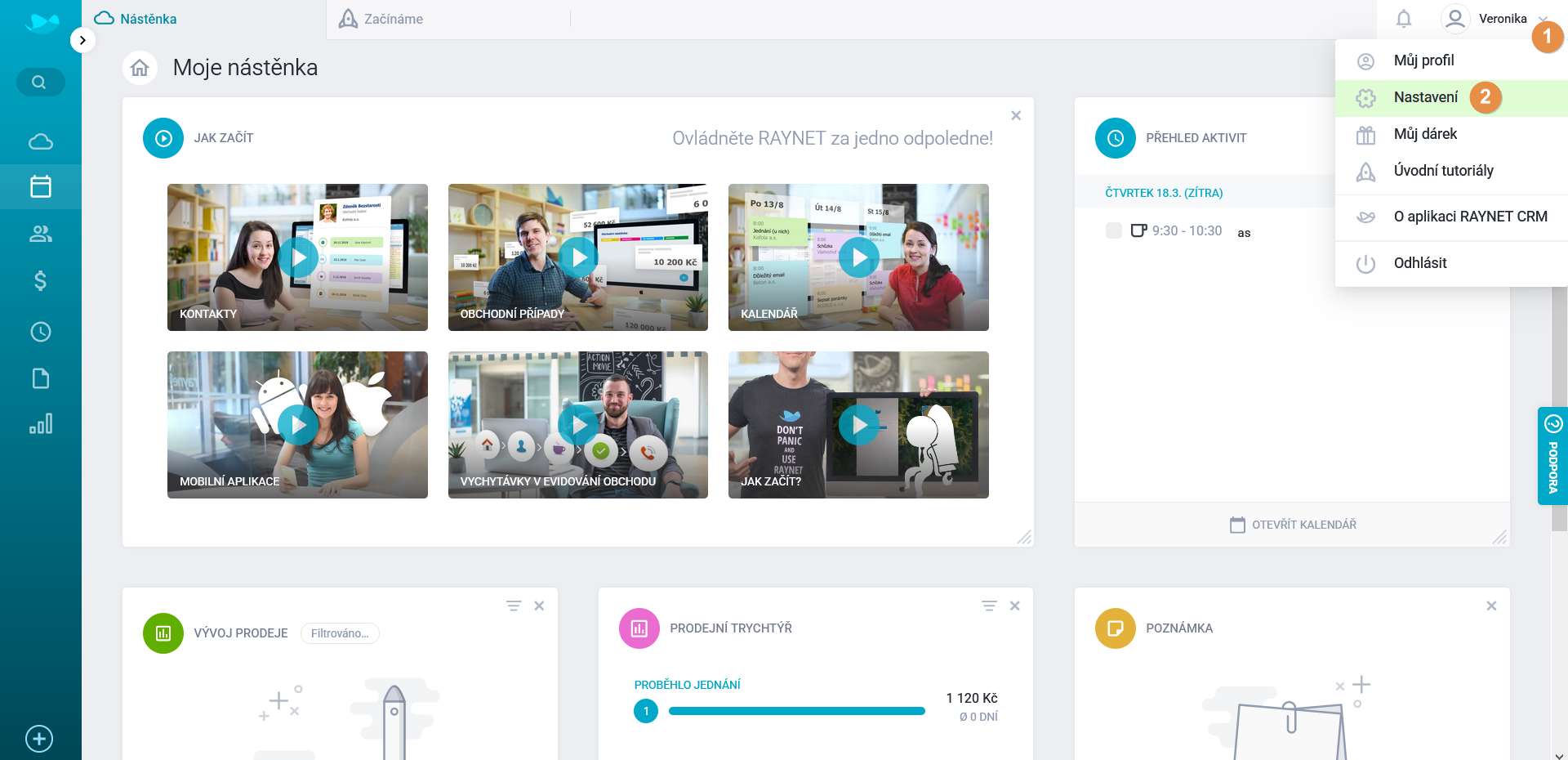
After logging in to RAYNET, click Your profile (your name) / Settings.
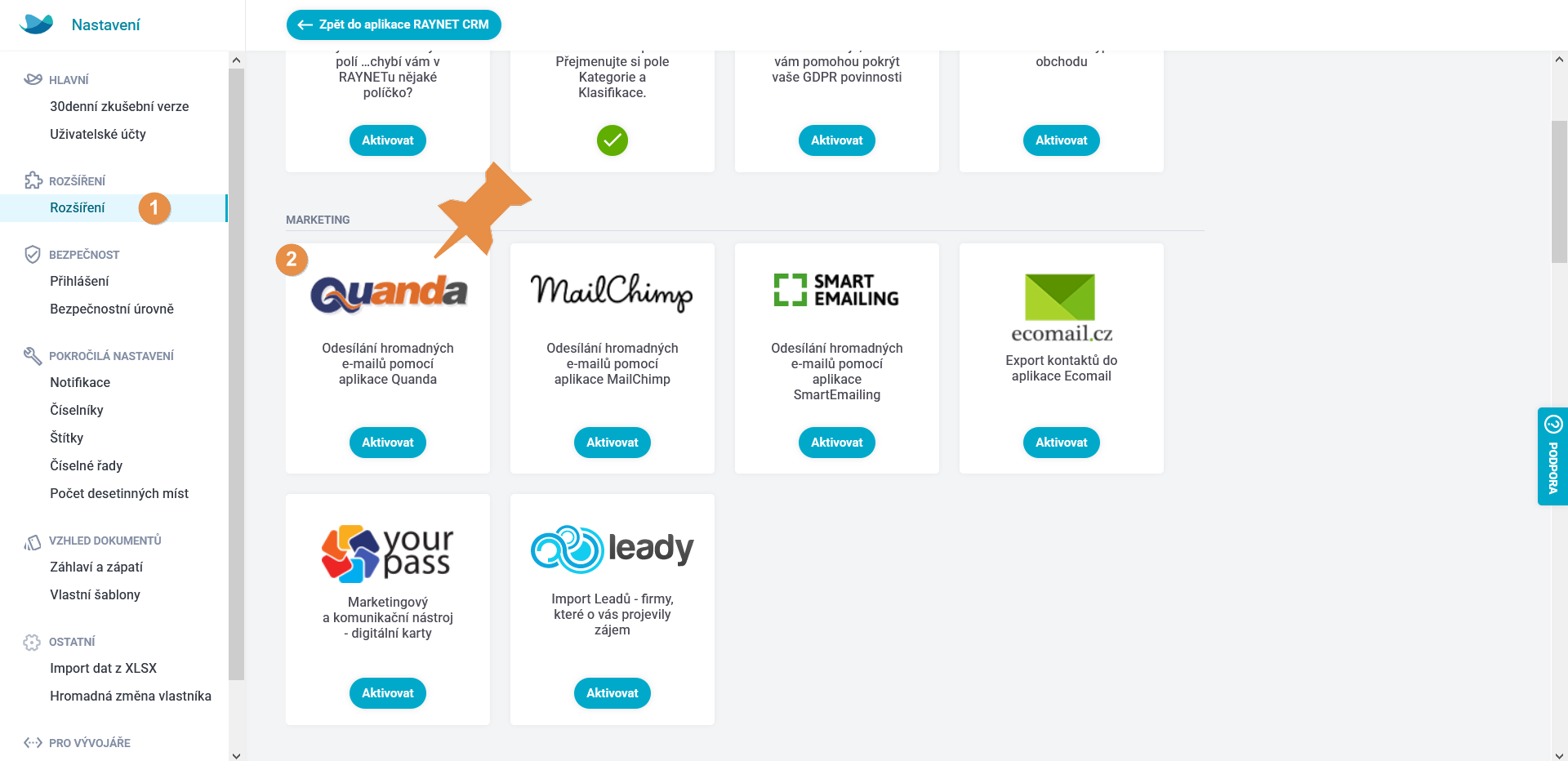
In the left-hand section choose Extensions / Marketing - Quanda / Activate / Add.
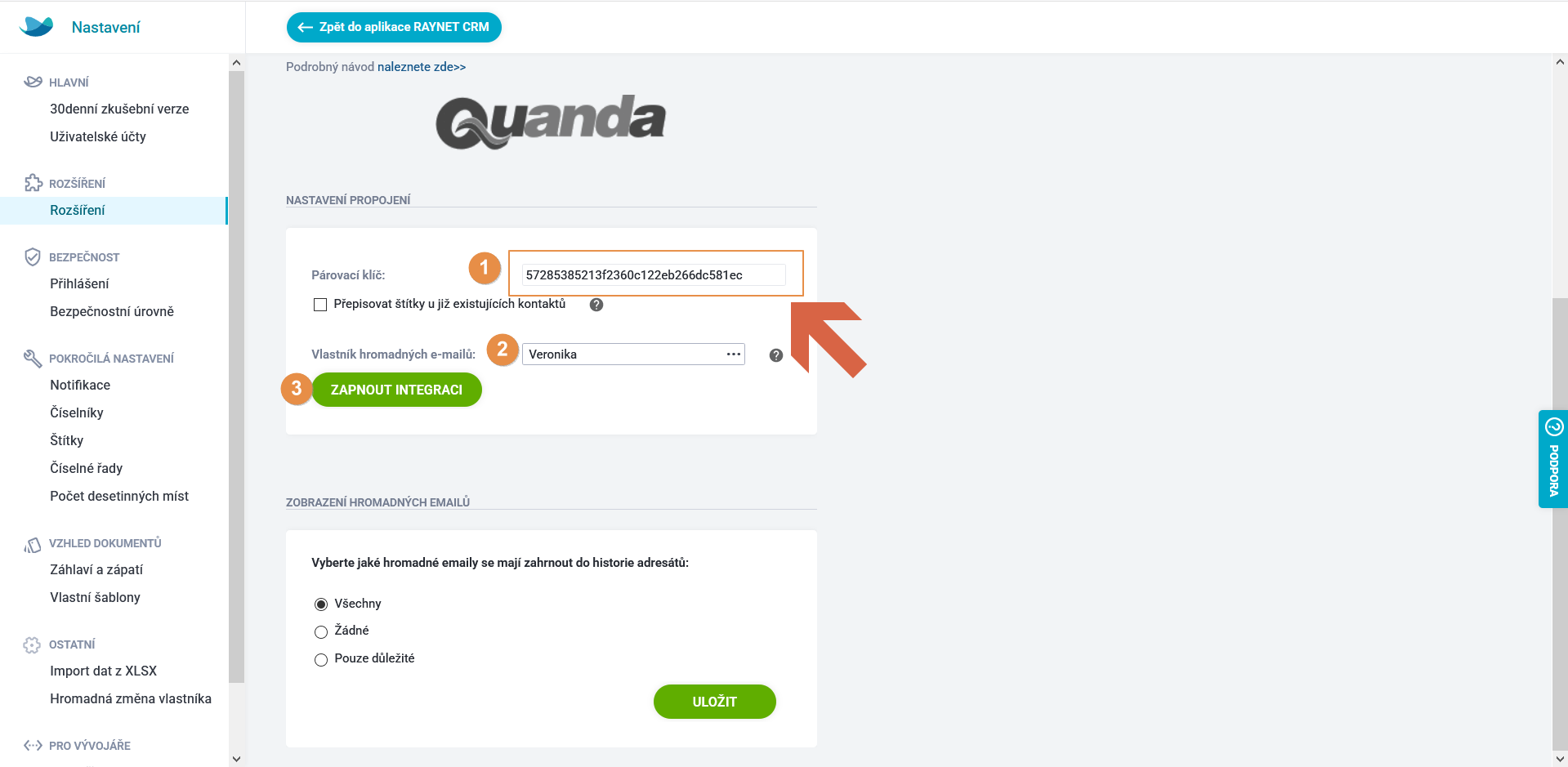
Paste the copied API key, choose the owner of bulk e-mails (and any further settings) and click the TURN INTEGRATION ON button. After clicking the Back to the RAYNET CRM application button, you are prompted to reload the application so that the change takes effect.
The connection is done. Great work.
Now you can also have a look at how to export contacts from RAYNET into Quanda.
You can export from Clients, Contact persons and Leads. For all contacts, an e-mail address is a condition, without it a contact cannot be created in Quanda.
For the further work with contacts in Quanda you need to record tags with the contacts (Clients, Contact persons, Leads).
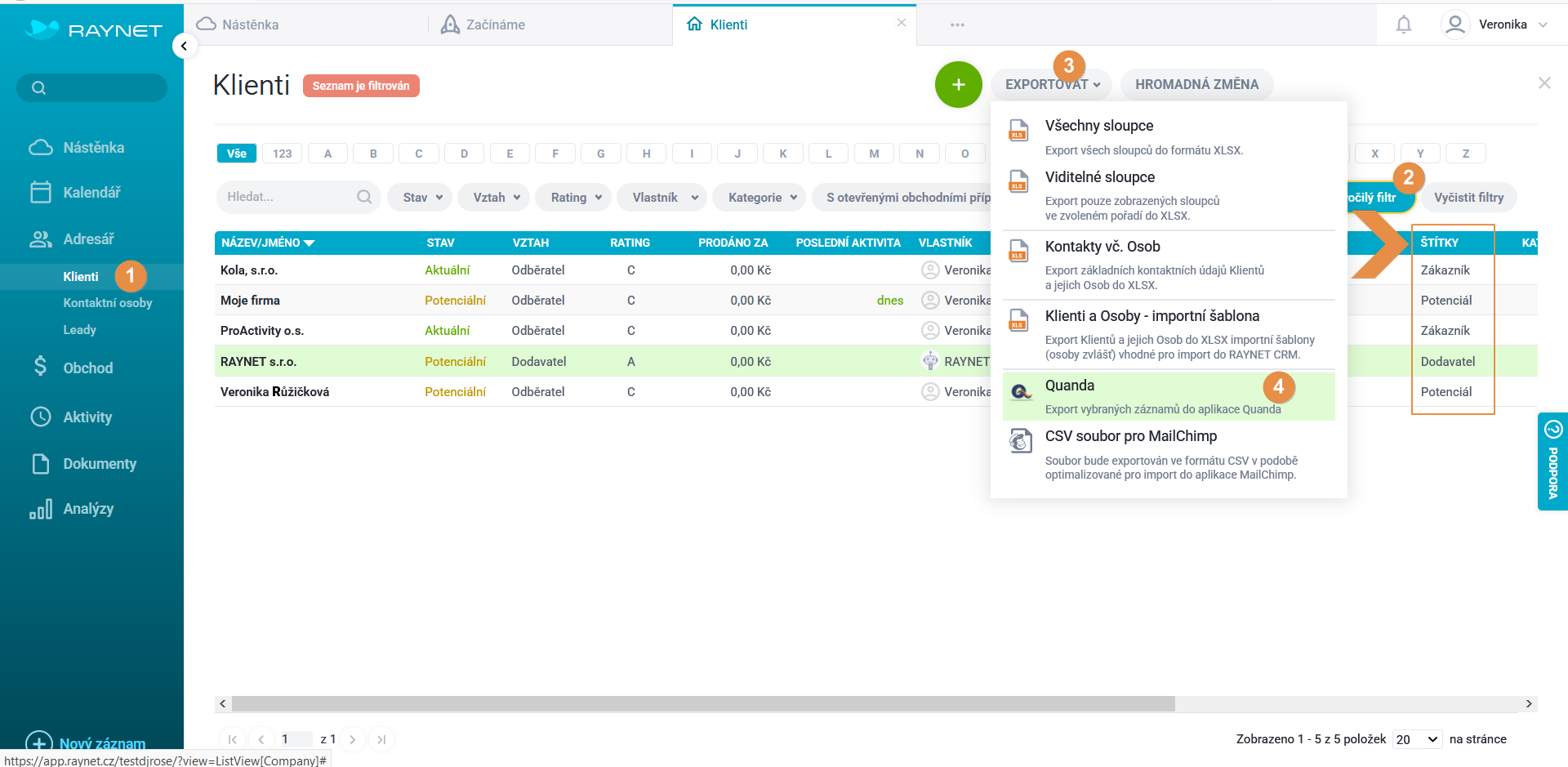
In RAYNET, choose the list you will export the contacts from. Using the advanced filter you can adjust the list according to the criteria you need. Once you have the list displayed, click the EXPORT / Quanda button.
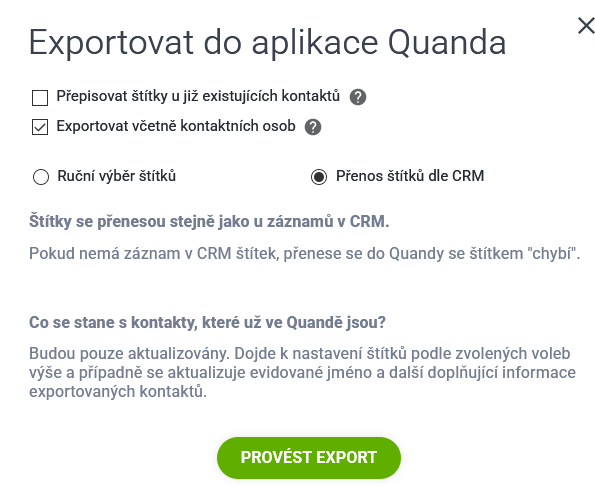
If you export from the list of Clients, you can also choose Export including contact persons. You also need to tick Transfer tags according to CRM so that the contact export carries the tags across. And then just click the RUN EXPORT button.
After the export, a check of the contacts runs. Thanks to it you will see how many contacts were newly transferred, how many existing contacts were updated and how many errors occurred, if any.
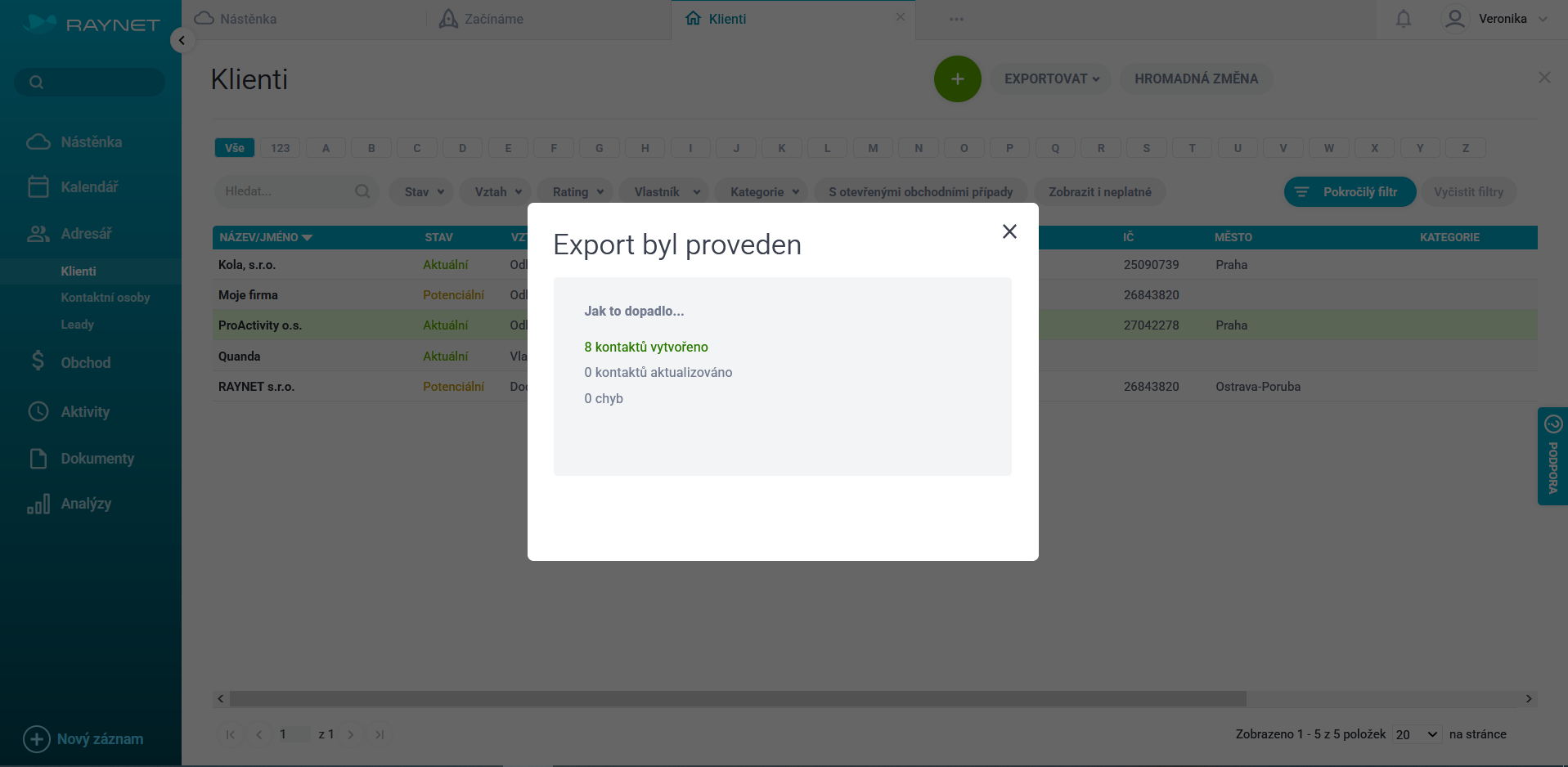
You will find the imported contacts in Quanda in the contact list.
Within a single export you can always transfer up to 5,000 contacts (it can take up to 15 minutes before the contacts appear in Quanda).
A maximum of 2 e-mail addresses from RAYNET can be transferred to one contact in Quanda.
During the export, the following is transferred into Quanda: for a Client > the contact is exported into the list of companies > name, owner, company ID, contact persons, e-mail, mobile, tags (if the client is recorded as a natural person, they are automatically created as a Contact in Quanda as well), for a Contact person > the contact is exported into the list of contacts, which can then be added as recipients into e-mail campaigns > title, gender, salutation, first name, surname, date of birth, client, tags, owner, e-mail 1, e-mail 2 (for records only, no e-mail campaigns from Quanda are sent to it), phone, mobile, street and house number, city, postcode, country, for a Lead > the contact is exported into the list of contacts, which can then be added as recipients into e-mail campaigns > first name, surname, client, tags, e-mail 1, e-mail 2, phone, mobile, street and house number, city, postcode, country.
Do you have questions? We will be happy to answer them. Just contact our customer support at +420 605 163 892, e-mail: support@onquanda.com.
Updated říjen 19, 2021