Two-factor authentication (2FA) is a way of securing your account where a password alone is not enough to log in, another level of verification is needed as well. In our case we added verification through an authenticator app on your phone to Quanda. Even if your password fell into the wrong hands, nobody gets into your account without this code. We recommend activating it to everyone who wants their account better protected.
You will find the security settings with the two-factor authentication option directly in the Quanda application after clicking your profile in the top right corner.

ACTIVATING 2FA
- Click your profile photo in the top right corner and choose Security.
- Scan the QR code that appears in your authenticator app. If scanning does not work, you can enter the displayed secret key manually.
- Enter the 6-digit code the app generated for you into the field below and click Verify and activate.
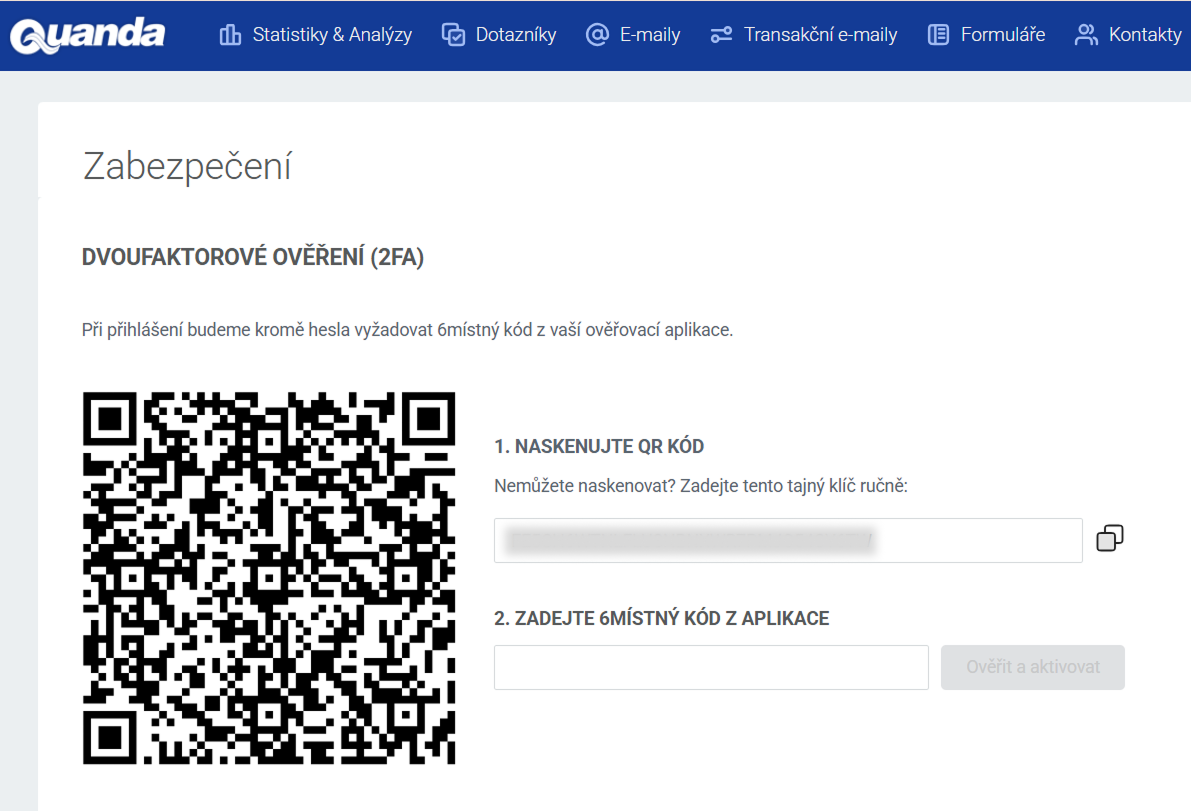
After the activation, Quanda asks you for the current code from the app on top of your password every time you log in.
We recommend having the authenticator app installed before you start the activation, so that you have both the QR code and the password at hand at once.
Do you have questions? We will be happy to answer them. Just contact our customer support at +420 605 163 892 or by e-mail at support@onquanda.com.
Updated červenec 3, 2026